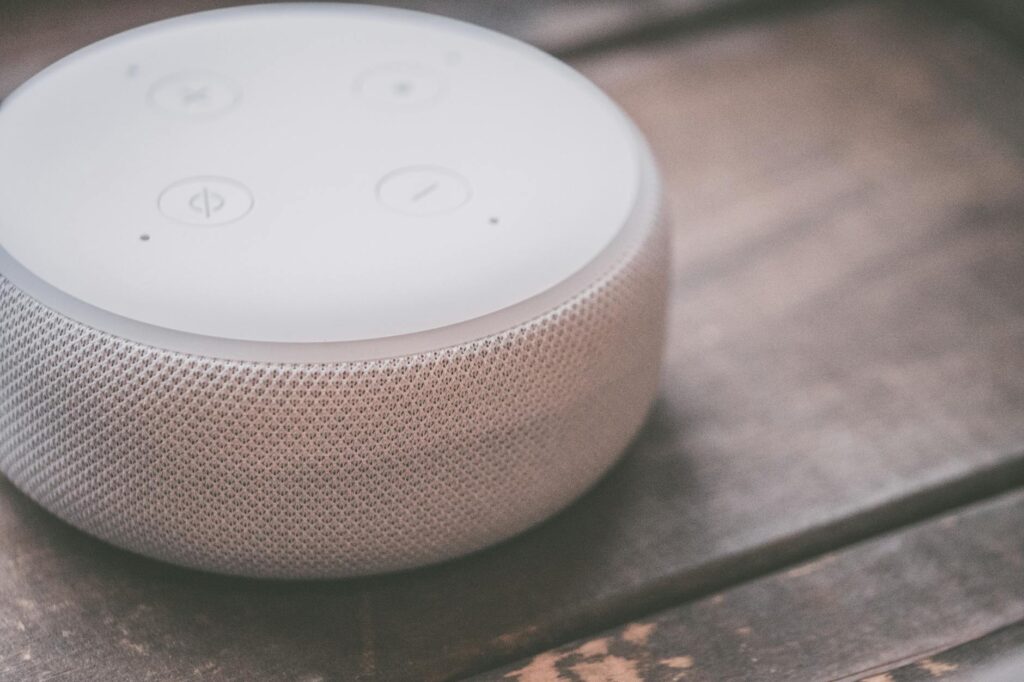
Unlocking the Power of Your Connected Home
Most readers searching for Google Assistant commands are looking for ways to simplify their lives. Imagine walking into a dark house and simply saying, “Hey Google, I’m home,” to have your lights turn on, your preferred playlist start, and the thermostat adjust to your ideal temperature. This isn’t science fiction anymore; it’s the reality Google Assistant brings to smart home management.
The core principle is intuitive voice interaction. By speaking natural language phrases, you can instruct your Google Assistant-enabled devices to perform specific actions. This article will guide you through the essential commands, advanced techniques, and best practices to truly master your smart home in 2026.
Getting Started: Basic Google Assistant Commands
Before diving into complex automation, it’s essential to grasp the fundamental commands. These form the bedrock of your smart home control. For instance, controlling your smart lights is one of the most common use cases.
Smart Lighting Control:
- To turn lights on/off: “Hey Google, turn on the living room lights.” or “Hey Google, turn off all the lights.”
- To adjust brightness: “Hey Google, set the bedroom lights to 50%.” or “Hey Google, brighten the kitchen lights.”
- To change colour (for compatible bulbs): “Hey Google, set the lamp to blue.” or “Hey Google, make the mood lighting warm white.”
These commands are straightforward and incredibly useful for setting the ambiance or ensuring you don’t waste energy. The key is to name your devices and rooms clearly within the Google Home app, so Assistant knows exactly what you’re referring to.
Thermostat and Climate Control Commands
Maintaining the perfect home temperature is another area where Google Assistant shines. By linking your smart thermostat, you can easily adjust settings without leaving your couch or even your bed.
Climate Control:
- To check temperature: “Hey Google, what’s the temperature inside?”
- To set a specific temperature: “Hey Google, set the thermostat to 72 degrees.”
- To adjust temperature by a degree: “Hey Google, turn the temperature up 2 degrees.”
- To switch modes: “Hey Google, set the thermostat to cool.”
According to Google’s own documentation (as of 2026), smooth integration with major smart thermostat brands like Nest, Eco bee, and Honeywell is standard, making setup straightforward for millions of users.
Entertainment and Media Control
Your Google Assistant can also act as your personal DJ or movie director. Controlling smart TVs, streaming devices, and smart speakers is a breeze.
Media Commands:
- To play music: “Hey Google, play some jazz music on Spotify.” or “Hey Google, play my workout playlist.”
- To control playback: “Hey Google, pause the music.” or “Hey Google, next song.”
- To control compatible smart TVs: “Hey Google, play Stranger Things on Netflix on the living room TV.” or “Hey Google, turn up the volume on the TV.”
- To control smart speakers: “Hey Google, what song is this?”
This hands-free control is particularly handy when your hands are full or you simply want to relax without fumbling for remotes.
Creating Powerful Google Assistant Routines
This is where Google Assistant commands truly elevate your smart home experience. Routines allow you to string together multiple actions into a single command or trigger. For example, a “Good Morning” routine could simultaneously turn on your bedroom lights, give you a weather update, tell you your first calendar appointment, and start your coffee maker.
How to Create a Routine:
- Open the Google Home app.
- Tap on “Routines.”
- Tap the “+” button to create a new routine.
- Choose a starter: this can be a voice command (e.g., “Hey Google, bedtime”), a specific time, or even sunrise/sunset.
- Add actions: select from a wide range of device controls, media playback, information requests, and more. You can even add custom commands.
- Save your routine.
A practical insight here is to start simple and build complexity. For instance, a “Movie Night” routine might dim the lights, turn on the TV, and set the soundbar to a specific volume. According to user feedback analysed by tech forums in early 2026, well-designed routines can save users several minutes each day.
Beyond the Basics: Advanced Smart Home Control
As of May 2026, Google Assistant’s capabilities extend to more nuanced control. This includes managing smart locks, security systems, and even controlling appliances.
Security and Appliance Commands:
- Smart Locks: “Hey Google, lock the front door.” (Note: Unlocking often requires a voice PIN for security).
- Security Cameras: “Hey Google, show me the front door camera.” (Requires a compatible smart display or TV).
- Smart Plugs/Appliances: “Hey Google, turn on the fan.” or “Hey Google, start the robot vacuum.”
A unique insight: Google Assistant is increasingly integrating with geo-fencing. This means your routines can be triggered by your location. For example, your lights could turn on automatically when your phone (and thus, you) arrives within a certain radius of your home, enhancing convenience and security.
Device Compatibility and Set up
The effectiveness of Google Assistant commands hinges on compatible devices and proper setup. Google Assistant works with hundreds of thousands of smart home devices from thousands of brands. Look for the “Works with Google Assistant” badge on product packaging or online listings.
Setup Process:
- Ensure your smart device is set up according to its manufacturer’s instructions and is connected to your Wi-Fi network.
- Open the Google Home app on your smartphone or tablet.
- Tap the “+” icon, then select “Set up device.”
- Choose “Works with Google” or “New device” depending on the device type and follow the on-screen prompts to link your accounts.
A common pitfall is attempting to link devices with incompatible ecosystems. While Google Assistant is broadly compatible, some niche products might require specific hubs or have limited integration. Always check compatibility before purchasing new smart home gear.
Troubleshooting Common Issues
Even with the best setup, you might encounter issues. Here are common problems and solutions:
- Device Unresponsive: Check if the device is powered on and connected to Wi-Fi. Restart your smart speaker/display and the device in question. Ensure the Google Home app is updated.
- Command Not Understood: Speak clearly and directly towards your Google Assistant device. Try rephrasing the command using simpler terms. Ensure the device is correctly named in the Google Home app.
- Routine Not Working: Double-check the routine’s starter trigger and the sequence of actions in the Google Home app. Make sure all linked devices are online and functioning.
For persistent issues, consulting the manufacturer’s support or Google’s official help pages can provide more specific solutions. As of 2026, Google’s AI-driven diagnostics within the Home app offer more proactive troubleshooting suggestions than ever before.
Tips for Maximizing Your Smart Home with Voice Control
To truly master your smart home, consider these advanced tips:
- Use Specific Room Names: Instead of just “lights,” say “living room lights” or “bedroom lamp.”
- Use Groups: In the Google Home app, group similar devices (e.g., all downstairs lights) to control them simultaneously with one command.
- Explore Third-Party Integrations: Many services and devices offer deeper integration through custom “Actions on Google.”
- Set up Voice Match: This allows Google Assistant to recognise your voice and provide personalized results (like calendar events) and access specific controls.
- Experiment with Custom Commands in Routines: Don’t be afraid to create unique phrases for complex actions.
A practical insight from experienced smart home users is to periodically review and update your routines. As your needs change or new devices are added, re-optimising your automations ensures they remain effective and relevant.
Pros and Cons of Google Assistant Smart Home Control
Pros
- Exceptional convenience and ease of use.
- Wide compatibility with thousands of devices.
- Powerful routine creation for complex automation.
- Voice Match offers personalized experiences.
- Accessible for individuals with mobility challenges.
Cons
- Requires a stable Wi-Fi network for all devices.
- Privacy concerns related to voice data collection.
- Over-reliance can sometimes lead to frustration if commands fail.
- Initial setup can be complex for beginners.
- Voice recognition can be challenging in noisy environments.
Frequently Asked Questions
What is the most basic Google Assistant command for smart home control?
The most basic commands involve controlling individual devices like lights or thermostats. For example, “Hey Google, turn on the living room light” or “Hey Google, set the thermostat to 70 degrees Fahrenheit.” These simple instructions are the foundation of smart home automation.
How do I make Google Assistant understand my commands better?
To improve understanding, speak clearly and directly to your Assistant device. Use the exact names for your devices and rooms as set in the Google Home app. Rephrasing your command using simpler language can also help.
Can Google Assistant control my smart TV?
Yes, if your smart TV or streaming device is compatible with Google Assistant, you can control it. Commands like “Hey Google, play [show name] on Netflix on the living room TV” are common and effective.
What are Google Assistant Routines and why should I use them?
Routines allow you to trigger multiple actions with a single command or at a set time. You should use them to automate daily tasks, like a “Good Morning” routine that turns on lights, provides weather updates, and starts your coffee maker.
Is it safe to use Google Assistant for controlling smart locks?
For security reasons, Google Assistant typically requires a voice PIN or a confirmation through the Google Home app to unlock doors. While convenient, it’s crucial to set up these security measures to prevent unauthorized access.
How do I add a new smart device to Google Assistant?
You add new devices via the Google Home app. Tap the “+” icon, then “Set up device,” and follow the prompts to link the new device and assign it to a room in your home.
Conclusion: Your Voice is the Key
Mastering Google Assistant commands is about more than just convenience; it’s about creating a more intuitive, efficient, and personalized living space. As of May 2026, the integration of voice control into our homes is smooth and powerful. By understanding basic commands, using routines, and ensuring proper setup, you can unlock the full potential of your connected devices.
Actionable takeaway: Start today by creating one simple routine in your Google Home app – perhaps a “Goodnight” routine that turns off lights and locks doors – and experience the immediate benefits of voice-controlled automation.
Last reviewed: May 2026. Information current as of publication; pricing and product details may change.
Editorial Note: This article was researched and written by the Bloxtra editorial team. We fact-check our content and update it regularly. For questions or corrections, contact us.