h research into your specific device model and chosen ROM is crucial for a successful and safe flashing experience.
Technology
Flashing Custom ROMs in 2026: Your Ultimate Guide
What Exactly is a Custom ROM?
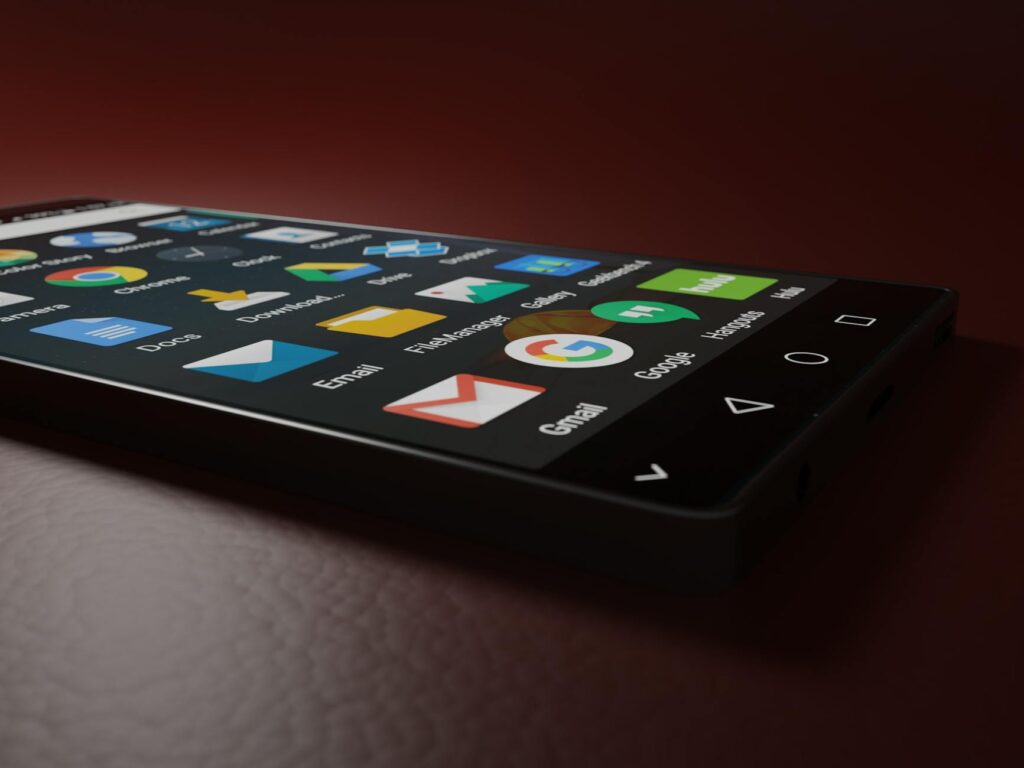
A custom ROM is essentially a modified version of the Android operating system, built by independent developers or communities, rather than the device manufacturer. Think of it as a fresh coat of paint and a souped-up engine for your phone. These ROMs can range from minimalist, performance-focused builds to feature-rich expansions of stock Android. As of May 2026, the world of custom ROM development remains vibrant, with projects like LineageOS continuing to support a wide array of devices.
The appeal lies in bypassing manufacturer limitations. Stock ROMs often come with pre-installed apps (bloatware) that you can’t remove, and updates can be slow or non-existent for older devices. Custom ROMs offer a way around this, giving users more control over their device’s software. For instance, a developer might optimize a ROM specifically for better battery life or integrate advanced privacy features not present in the official firmware.
Information Gain: Unlike official updates which are infrequent and sometimes restrictive, custom ROMs can offer frequent security patches and feature updates, sometimes even bringing newer Android versions to devices that have been discontinued by their manufacturers. This is a key driver for users seeking longevity from their hardware.
Why Flash a Custom ROM in 2026?
The primary motivation for flashing custom ROMs today, as it has been for years, is enhanced control and customization. Many users find stock Android bloated and restrictive. Custom ROMs allow you to debloat your device, removing unwanted manufacturer or carrier apps that consume resources and data.
And, custom ROMs can unlock performance improvements. Developers often optimize the code for speed and efficiency, leading to a snappier user experience, especially on older hardware. You might also gain access to unique features, such as advanced theming engines, granular permission controls, or built-in ad-blocking, which aren’t available on stock firmware.
The Risks Involved: What Could Go Wrong?
Let’s be clear: flashing a custom ROM is not without its risks. The most significant is the possibility of ‘bricking’ your device, rendering it unusable. This can happen if the flashing process is interrupted, if you use incompatible files, or if there’s an error during installation. A hard brick means the device won’t power on at all, while a soft brick usually means it’s stuck in a boot loop.
Another major concern is voiding your device’s warranty. Most manufacturers consider unlocking the bootloader and flashing custom software as a violation of warranty terms. While some manufacturers are more lenient, it’s a risk you must be prepared to accept. According to industry forums and user experiences, warranty claims are often denied if signs of custom software are detected.
Drawback: Even if your device isn’t bricked, you might encounter bugs or instability with certain custom ROMs. Developers are often individuals or small teams, and not every ROM is as polished as the official software. Some features might not work correctly, or the ROM could be prone to random crashes.
Preparing for the Flash: What You Need
Before you even think about flashing, meticulous preparation is key. First, back up absolutely everything. This includes your apps, app data, photos, videos, contacts, and SMS messages. Tools like Titanium Backup (requires root) or cloud services can help, but a full device backup is the safest bet. Remember, the process can wipe your entire device.
You’ll need a computer, a USB cable, the Android SDK Platform Tools (for ADB and Fast boot commands), and the specific files for your device: the custom recovery (like TWRP – Team Win Recovery Project), the custom ROM itself (a.zip file), and often Google Apps (GApps) if they aren’t included. Ensure all downloads are for your exact device model; flashing files meant for another model is a common way to brick a phone.
Practical Tip: Download files from reputable sources only. XDA Developers is a goldmine for device-specific forums where you can find ROMs, recoveries, and detailed guides vetted by the community. Avoid unofficial download sites that might bundle malware.
The Step-by-Step Flashing Process
The exact steps can vary slightly between devices, but the general process for flashing a custom ROM in 2026 follows this pattern:
- Unlock the Bootloader: This is the first hurdle. Most manufacturers have a process for this, often involving enabling OEM Unlocking in Developer Options and using Fast boot commands on your PC. Some manufacturers, like Xiaomi or OnePlus, have specific tools or waiting periods.
- Install a Custom Recovery: Once the bootloader is unlocked, you’ll flash a custom recovery environment. TWRP is the most popular choice. This recovery is crucial as it allows you to flash.zip files (ROMs, GApps, etc.), create full system backups (Nandroid backups), and wipe partitions.
- Boot into Custom Recovery: Power off your device and boot into the custom recovery using a specific button combination (e.g., Volume Up + Power).
- Wipe Partitions: In TWRP, you’ll typically need to perform a ‘Factory Reset’ or ‘Wipe’ of specific partitions: Dalvik/ART Cache, Cache, System, and Data. Don’t wipe internal storage unless explicitly instructed. This step removes the old operating system.
- Flash the Custom ROM: Use the ‘Install’ option in TWRP to navigate to the.zip file of your chosen custom ROM and flash it.
- Flash GApps (Optional but Recommended): If the ROM doesn’t include Google Apps, you’ll need to flash a GApps package immediately after the ROM. Ensure you download the correct GApps package for your Android version and device architecture (ARM, ARM64).
- Wipe Cache/Dalvik Again: It’s good practice to wipe cache and Dalvik/ART Cache after flashing both the ROM and GApps.
- Reboot System: Select ‘Reboot System’ in TWRP. The first boot can take a considerable amount of time (5-15 minutes), so be patient.
Experience Signal: The first boot after flashing is always nerve-wracking. If it takes longer than 15–20 minutes, it’s usually a sign of a soft brick, and you might need to re-enter recovery and try wiping/flashing again, or even re-flash the stock ROM.
Choosing the Right Custom ROM for You
With hundreds of custom ROMs available, selecting the right one can be daunting. As of May 2026, some of the most popular and well-supported ROMs include:
| ROM Name | Key Features | Best For | Pros | Cons |
|---|---|---|---|---|
| LineageOS | Stability, extensive device support, privacy features | General users, older devices | Reliable, frequent updates, large community | Can be less feature-rich than others |
| Pixel Experience | Pure Google Pixel UI and features | Users wanting a Pixel-like experience | Smooth UI, Google features included | Device support can be more limited |
| crDroid | Extensive customization options, performance tweaks | Power users, tinkerers | Highly customizable, good performance | Can be overwhelming for beginners |
| Evolution X | Pixel features with added customization | Users wanting Pixel look with more options | Combines Pixel aesthetics with deep customization | Potential for more bugs due to feature-rich nature |
When choosing, consider your device’s age, your technical expertise, and what you want from a custom ROM. Always check the official XDA Developers thread for your device to see what ROMs are recommended and if they are actively maintained.
Common Mistakes and How to Avoid Them
Many users stumble during the flashing process. One of the most common mistakes is downloading files for the wrong device model. Always double-check your exact model number (e.g., SM-G998B for a Samsung Galaxy S21 Ultra) against the ROM and recovery file descriptions.
Another pitfall is skipping the Nandroid backup. This is your safety net. If something goes wrong, you can boot back into TWRP and restore your previous system state. Never skip this step. Also, ensure your device has at least 60-70% battery charge before starting, as the process can take time and drain the battery.
Tips for a Smooth Custom ROM Experience
Once you’ve successfully flashed a custom ROM, maintaining a smooth experience is key. Keep your ROM updated. Most custom ROMs have built-in updater tools or provide OTA (Over-The-Air) updates. Regularly checking for and installing these updates ensures you get the latest features and security patches.
If you encounter bugs, check the ROM’s official thread on XDA Developers. Often, other users have experienced the same issue and found a solution, or a fix is in development. Clean flashing (wiping all partitions before installing a new ROM) is generally recommended when moving between major Android versions or different ROMs to avoid conflicts.
Expert Advice: For devices that are several years old, flashing a lighter custom ROM like LineageOS or a minimal AOSP (Android Open Source Project) build can yield the most significant performance improvements. Avoid ROMs packed with experimental features if stability is your priority.
Frequently Asked Questions
What is the main benefit of custom ROMs?
The primary benefit of custom ROMs is enhanced control and customization, allowing users to bypass manufacturer limitations, remove bloatware, improve performance, and gain access to features not found in stock Android. They can also extend the software life of older devices.
Can flashing a custom ROM brick my phone?
Yes, there’s a significant risk of bricking your phone if the process is not followed correctly, if incompatible files are used, or if the flashing process is interrupted. A thorough backup and careful adherence to instructions are essential.
Do custom ROMs get security updates?
Many popular custom ROMs receive regular security updates, often faster than official manufacturer updates, especially for devices no longer supported by the OEM. However, this depends on the ROM’s development team and the specific device’s support status.
Is it possible to go back to stock Android?
Yes, in most cases, it’s possible to return to the stock Android firmware. This usually involves downloading the official firmware package for your device and flashing it using specific manufacturer tools (like Odin for Samsung) or Fast boot commands.
How do I find the best custom ROM for my device?
The best way is to visit forums like XDA Developers, search for your specific device model, and see which custom ROMs are actively developed, well-reviewed by the community, and have detailed installation guides. User feedback is invaluable.
What is TWRP and why is it needed?
TWRP (Team Win Recovery Project) is a custom recovery environment that replaces the stock recovery on your Android device. It’s needed because it allows you to perform advanced operations like flashing custom ROMs, creating full system backups (Nandroid), and wiping partitions, which the stock recovery can’t do.
Will flashing a custom ROM void my warranty in 2026?
In most cases, yes. Unlocking the bootloader, which is a prerequisite for flashing custom ROMs, typically voids the manufacturer’s warranty. Always check your specific device manufacturer’s policy regarding warranty and modifications.
Last reviewed: May 2026. Information current as of publication; pricing and product details may change.
Editorial Note: This article was researched and written by the Bloxtra editorial team. We fact-check our content and update it regularly. For questions or corrections, contact us.