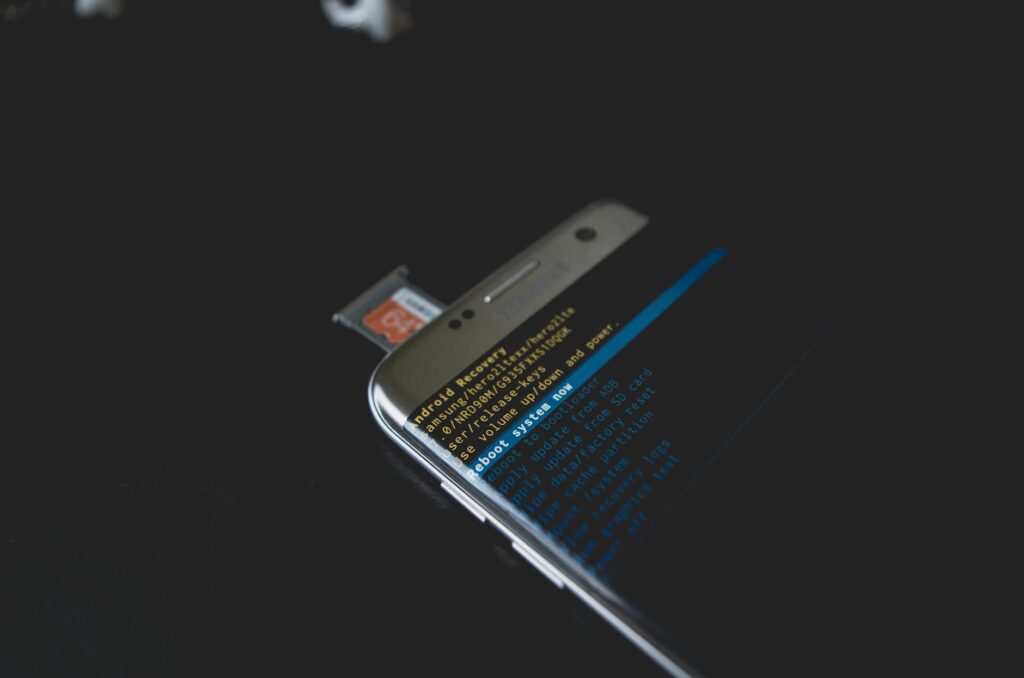
Advanced Android Bootloader Modes Explained: A 2026 Deep Dive
Ever wondered what happens when your Android device powers on? Beyond the familiar splash screen, a sophisticated system called the bootloader orchestrates the entire startup process. For tech enthusiasts and power users, understanding its advanced modes is key to unlocking your device’s full potential. As of May 2026, these modes remain critical for everything from custom ROM installation to deep system recovery.
Last updated: May 6, 2026
Key Takeaways
- The bootloader is the first software that runs on your device when powered on, initializing hardware and loading the operating system.
- Fastboot mode is primarily for flashing partitions (like system, boot, or recovery images) and unlocking/re-locking the bootloader.
- Recovery mode allows for system maintenance, including factory resets, cache wiping, and applying software updates via ADB Sideload.
- EDL (Emergency Download) mode is a low-level Qualcomm-specific mode for deep flashing and recovery, often used when a device is unrecoverable by other means.
- Unlocking the bootloader can void your warranty and poses security risks if not handled carefully.
Most readers searching this topic are looking to either troubleshoot a device that won’t boot correctly or prepare for custom software installations. While your phone might seem like a black box, its bootloader is your gateway to its inner workings. Let’s peel back the layers and explore these essential modes.
What is an Android Bootloader?
Think of the bootloader as the initial gatekeeper. Its primary job is to initialize the hardware components of your Android device and then load the operating system kernel. It’s the first piece of software that runs when you hit the power button. Without a functional bootloader, your phone or tablet is essentially a brick.
Most manufacturers lock the bootloader by default. This is a security measure to prevent unauthorized modifications to the device’s core software, which could compromise security or stability. Unlocking it’s the first step for anyone looking to install custom ROMs or root their device.
The Primary Bootloader Modes: Fastboot and Recovery
When we talk about advanced bootloader modes, two stand out: Fastboot and Recovery. Pressing a specific button typically access these combination during startup.
Fastboot Mode: The Flashing Tool
Fastboot mode is an incredibly powerful utility that allows you to flash or modify partitions on your device’s internal storage. It communicates with your computer via USB, using a protocol known as the Fastboot protocol. This mode is indispensable for tasks like unlocking or re-locking the bootloader, flashing custom recoveries (like TWRP), updating system partitions (like boot, system, or vendor images), and even performing factory resets.
To use Fastboot, you’ll typically need to install the Android SDK Platform Tools on your computer, which includes the `fastboot` executable. From your computer’s command line, you can then send commands to your device in Fastboot mode. For instance, a common command is `fastboot flashing unlock` (or `fastboot oem unlock` on older devices) to initiate the bootloader unlocking process. Each command sends instructions over USB, allowing for precise control over your device’s software components.
A practical insight: Always ensure your device has sufficient battery life (at least 60%) before starting any flashing operation in Fastboot mode. A sudden power loss can lead to a bricked device.
Recovery Mode: System Maintenance Hub
Recovery mode is another critical bootloader mode, designed for system maintenance and repair. When your Android device boots into recovery, it bypasses the normal operating system loading process. Instead, it loads a separate, minimal environment often referred to as the ‘recovery environment’ or ‘recovery partition’.
Stock recovery modes typically offer basic functions like performing a factory data reset, wiping the cache partition, applying updates from ADB (Android Debug Bridge) or external storage, and rebooting the system. Custom recoveries, such as TWRP (Team Win Recovery Project), offer far more advanced features, including full system backups (nandroid backups), partition flashing, file management, and ADB Sideload capabilities for installing custom ROMs and other zip files.
The ADB Sideload feature in recovery mode is particularly useful. It allows you to transfer zip files from your computer to your device over USB and install them without needing to copy them to internal storage or an SD card first. This is often the preferred method for installing custom ROMs or GApps (Google Apps) packages.
Beyond the Basics: Understanding EDL and Download Modes
While Fastboot and Recovery are the most commonly encountered modes, some devices, particularly those with Qualcomm chipsets, have additional, more specialized bootloader modes.
EDL Mode: The Last Resort for Qualcomm Devices
EDL, or Emergency Download Mode, is a low-level bootloader mode specific to Qualcomm Snapdragon chipsets. It’s designed to be a deep-level flashing mode, accessible even when a device is severely bricked and can’t boot into Fastboot or Recovery. EDL mode interacts directly with the Qualcomm chipset’s boot ROM.
Accessing EDL mode often requires specific hardware configurations or tools, and it’s generally considered a last resort for unbricking devices. Flashing firmware via EDL is highly sensitive and requires specific tools, often proprietary to the device manufacturer or chipset vendor. According to industry sources, using unofficial EDL tools can pose significant risks, including bricking the device permanently if not executed with precise firmware versions.
A word of caution: Entering EDL mode and attempting to flash firmware there’s for advanced users only. Incorrect firmware or procedures can render your device unrecoverable.
Download Mode (Samsung Specific)
Samsung devices have their own version of a download mode, often referred to simply as ‘Download Mode’ or ‘Odin Mode’. This mode is Samsung’s equivalent to Fastboot mode for flashing firmware. It’s accessed by pressing a specific button combination (often Volume Down + Home + Power, or Volume Down + Bixby + Power for newer devices) and then confirming on-screen.
Users typically interact with Download Mode using Samsung’s proprietary flashing tool, Odin. Odin allows users to flash official Samsung firmware (AP, BL, CP, CSC files), custom recoveries, and other system components. It’s a crucial tool for updating firmware, unbricking Samsung devices, or reverting to stock firmware.
The Bootloader Unlocking Process
Unlocking the bootloader is the gateway to installing custom software. The process varies significantly by manufacturer, but generally involves enabling ‘OEM unlocking‘ in Developer Options within Android, then booting into Fastboot mode and issuing an unlock command.
For example, on many Google Pixel devices, you’d boot into Fastboot and run `fastboot flashing unlock`. For Motorola or HTC devices, it might involve obtaining a unique unlock code from the manufacturer’s website. It’s crucial to note that unlocking the bootloader often wipes all user data on the device, effectively performing a factory reset. And, according to Google’s security guidelines as of 2026, unlocked bootloaders can increase a device’s vulnerability to malware if not managed properly, as they allow for modification of the system partition.
When to Use Which Mode: Practical Scenarios
Choosing the right bootloader mode depends entirely on your goal:
- To unlock or re-lock your bootloader: Fastboot mode.
- To flash a custom recovery (like TWRP): Fastboot mode.
- To install a custom ROM or GApps zip file: Custom Recovery mode (using ADB Sideload or installing from storage).
- To perform a factory reset or wipe cache partition: Stock Recovery mode or Custom Recovery mode.
- To flash official firmware on a Samsung device: Download Mode with Odin.
- To unbrick a severely damaged Qualcomm device: EDL mode (advanced users only).
A common scenario where users might need advanced bootloader knowledge is when a device enters a bootloop – it restarts repeatedly without fully loading Android. In such cases, booting into Recovery mode to wipe the cache or perform a factory reset, or using Fastboot to re-flash the stock boot or system image, can often resolve the issue.
Practical Tip: ADB Sideload for Updates
If you’re flashing a custom ROM or an update zip file via ADB Sideload in Recovery mode, ensure your computer has ADB set up correctly and that the zip file is not corrupted. A partially downloaded or corrupted file can cause installation failures.
Risks and Considerations for Advanced Bootloader Use
While powerful, these modes come with inherent risks. Unlocking the bootloader is the most significant step. As mentioned, it typically voids your device’s warranty. Plus, many banking and secure apps may refuse to run on a device with an unlocked bootloader or a rooted system due to security concerns. For instance, Google Pay and certain banking applications use SafetyNet attestation, which can be triggered by an unlocked bootloader or modified system files.
Flashing incorrect firmware in any bootloader mode can lead to a bricked device, rendering it unusable. This is especially true for EDL mode, where the margin for error is minuscule. Always download firmware and tools from reputable sources, and follow guides specific to your exact device model and software version.
Common Mistakes to Avoid
Users often stumble when working with bootloader modes. Here are a few common pitfalls:
- Attempting to flash firmware for the wrong device model: This is a surefire way to brick your phone. Always double-check model numbers and codenames.
- Not enabling OEM unlocking: Many devices require this setting to be toggled on in Developer Options before the bootloader can be unlocked via Fastboot.
- Using outdated Fastboot or ADB tools: While older versions might work, using the latest platform tools from Google ensures compatibility and access to newer features or fixes. As of 2026, Google regularly updates these tools.
- Ignoring battery levels: A device powering off mid-flash is disastrous. Keep your device charged.
- Not backing up data: Unlocking the bootloader and flashing firmware often wipe your device. Back up everything important beforehand.
Expert Insights for 2026
As of May 2026, the world of Android bootloaders remains largely consistent, but manufacturers continue to implement varying levels of security. Some devices, particularly those from brands like Xiaomi or OnePlus, have historically offered more accessible bootloader unlocking, often requiring a short waiting period after requesting it. Others, like certain Huawei models or carrier-locked devices, can be extremely difficult or impossible to unlock.
For those interested in custom development, understanding the bootloader is foundational. It’s not just about flashing ROMs; it’s about understanding the device’s boot sequence and how to control it. For instance, knowing how to use `fastboot boot ` allows you to temporarily boot a custom recovery or kernel without permanently flashing it, which is invaluable for testing. This technique is a staple for developers and advanced users.
The prevalence of Android devices with complex security implementations, like hardware-backed keystores and verified boot, means that even with an unlocked bootloader, certain system modifications might be restricted or detected. Always research your specific device’s security features before attempting advanced modifications.
Frequently Asked Questions
What is the difference between Recovery Mode and Fastboot Mode?
Recovery mode is for system maintenance like factory resets and applying updates. Fastboot mode is for flashing partitions, unlocking the bootloader, and low-level device management via USB commands from a computer.
Can I flash firmware without unlocking the bootloader?
Generally, no. While some devices allow official firmware updates via the stock recovery or manufacturer tools, flashing custom firmware or custom ROMs requires an unlocked bootloader, and often a custom recovery.
What happens if I flash the wrong firmware in Fastboot mode?
Flashing incorrect firmware can lead to a soft brick (device stuck on boot screen) or a hard brick (device completely unresponsive), potentially requiring specialized tools like EDL mode to recover.
Is it safe to unlock my Android bootloader?
Unlocking the bootloader carries risks: it can void your warranty, disable certain security features, and make your device more vulnerable if not managed carefully. However, for custom ROM users, it’s a necessary step.
How do I find out if my device’s bootloader can be unlocked?
Check your device manufacturer’s official website or reputable Android development forums like XDA Developers. Some manufacturers provide explicit instructions, while others restrict unlocking entirely.
What is EDL mode used for?
EDL mode is a Qualcomm-specific emergency download mode used for deep flashing and unbricking devices when other methods, like Fastboot or Recovery, are inaccessible. It’s a last resort for severe software issues.
Conclusion
The advanced bootloader modes of your Android device – Fastboot, Recovery, and specialized modes like EDL or Download Mode – are powerful tools for customization, maintenance, and recovery. Understanding their functions and how to use them safely is crucial for any serious Android enthusiast. While unlocking the bootloader opens up a world of possibilities, it demands caution and thorough research. By mastering these modes, you gain unparalleled control over your device’s lifecycle, enabling you to keep it running optimally or explore the vibrant world of custom Android software.
Last reviewed: May 2026. Information current as of publication; pricing and product details may change.
Editorial Note: This article was researched and written by the Bloxtra editorial team. We fact-check our content and update it regularly. For questions or corrections, contact us.