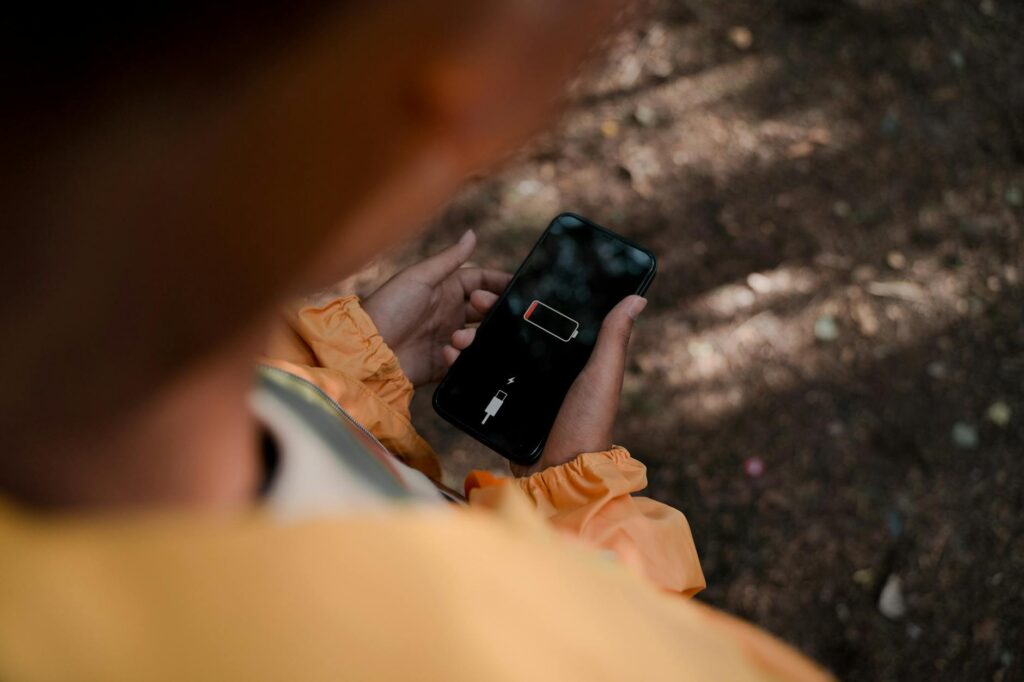
iPhone 18 Battery Life: Maximize Your Power in 2026
This guide covers everything about Maximizing Battery Life on Your iPhone 18 in 2026. As of May 2026, the iPhone 18 is here, and like any powerful device, keeping its battery alive throughout the day can be a challenge. Whether you’re a heavy user, a casual browser, or somewhere in between, understanding how to maximize your iPhone 18’s battery life is key to a smooth experience. We’re diving deep into the most effective strategies, focusing on common pitfalls and offering actionable advice to ensure your iPhone 18 keeps up with your demands.
Key Takeaways
- Adjusting screen brightness and auto-lock settings significantly impacts battery drain.
- Disabling unnecessary background app refresh and push notifications conserves power.
- Understanding battery health and optimizing charging habits prolongs your iPhone 18’s lifespan.
- Utilizing Low Power Mode and other built-in iOS 27 features offers immediate battery savings.
- Location Services and vibrant display settings are major battery consumers that can be managed.
Common Mistakes That Drain Your iPhone 18 Battery
It’s easy to fall into habits that silently deplete your iPhone 18’s battery. One of the most common culprits is keeping the display brightness cranked up to maximum, especially in low-light environments. While it offers a clear view, it’s a massive power hog. Another frequent mistake is leaving ‘Background App Refresh’ enabled for every single application. Many apps don’t need to constantly update in the background, yet they continue to consume precious battery life.
Many users also overlook the impact of push notifications. While convenient, having dozens of apps constantly pinging for attention drains your battery faster than you might realize. Constant screen-on time due to auto-lock being set too high is another significant factor. If your screen stays on for minutes after you’ve finished using it, that’s wasted energy. We’ll explore how to mitigate these common errors.
Optimizing Display Settings for Maximum Juice
Your iPhone 18’s gorgeous display is a battery drainer, but you can tame it. The first step is to lower your screen brightness. Instead of manually adjusting it each time, enable ‘Auto-Brightness’ in Settings > Accessibility > Display & Text Size. This uses the ambient light sensor to set an appropriate brightness, saving power when you don’t need it at full blast. According to Apple, enabling auto-brightness can significantly extend battery life by intelligently managing screen illumination.
Next, shorten your ‘Auto-Lock’ time. Setting it to 30 seconds or 1 minute ensures your screen turns off quickly when not in use. This simple change prevents accidental screen activations and saves considerable power over time. For the iPhone 18 Pro models, consider using the ‘Dark Mode’ more often. It’s not just easier on the eyes; on OLED displays, dark pixels are actually off, consuming zero power, which can lead to noticeable battery savings.
Taming Background App Activity
Background App Refresh allows apps to fetch new content even when you’re not actively using them. While useful for apps like social media or newsreaders, it’s a substantial battery drain when not managed. You can control this on a per-app basis. Navigate to Settings > General > Background App Refresh and toggle off access for any app that doesn’t absolutely need to update in the background. For instance, a calculator app or a simple utility tool has no need for this feature.
Push notifications are another area where apps constantly wake your device. Go to Settings > Notifications and review which apps are allowed to send you alerts. Turn off notifications for non-essential apps. You can still check these apps manually when you choose, without the constant battery drain from constant alerts. This also helps reduce distractions, a win-win.
Mastering Location Services and Connectivity
Location Services can be a battery killer if not managed carefully. Many apps request your location constantly, even when not in use. In Settings > Privacy & Security > Location Services, review each app’s permission. Set apps to ‘While Using the App’ instead of ‘Always’ whenever possible.
For system services, be judicious. While features like ‘Find My iPhone’ require location access, other services like ‘System Customization’ or ‘Motion Calibration & Distance’ might not need it enabled all the time. As of iOS 27, Apple has enhanced transparency around Location Services, showing you when an app has recently used your location.
Similarly, managing Wi-Fi and Bluetooth is important. While these technologies are efficient, constant searching for networks or devices can consume power. Ensure Wi-Fi and Bluetooth are turned off when not needed, especially if you’re in an area with poor Wi-Fi or no Bluetooth devices to connect to. You can quickly toggle these from the Control Center, but a more thorough check in Settings can reveal which specific apps are using Wi-Fi or Bluetooth in the background.
using iOS 27 Battery Management Tools
iOS 27 introduces several powerful tools to help you monitor and maximize your iPhone 18’s battery life. Go to Settings > Battery to see a detailed breakdown of your battery usage by app. This report is invaluable for identifying which applications are consuming the most power. If you see an app consistently at the top, consider limiting its background activity or checking its settings for further optimization.
The ‘Low Power Mode’ is your best friend when your battery is running low. It reduces background activity, mail fetch frequency, and some visual effects. While it can be manually enabled, iOS 27 will also prompt you to enable it when your battery reaches 20% and 10%. For those looking to understand their battery’s health, the ‘Battery Health & Charging’ section provides insights into your battery’s maximum capacity and can alert you if it needs servicing. According to Apple’s official documentation, maintaining your battery’s health is crucial for long-term performance.
Smart Charging Habits for Longevity
How you charge your iPhone 18 can significantly impact its long-term battery health. Modern lithium-ion batteries, like those in the iPhone 18, degrade over time. To mitigate this, Apple introduced ‘Optimized Battery Charging’ in iOS. When enabled (Settings > Battery > Battery Health & Charging), your iPhone learns your daily charging routine and waits to finish charging past 80% until just before you typically unplug it. This reduces the time the battery spends fully charged, which can slow down aging.
Avoid extreme temperatures. Leaving your iPhone 18 in a hot car or direct sunlight can permanently damage the battery. Similarly, very cold conditions can temporarily reduce battery life. Try to keep your device within a comfortable ambient temperature range. Also, while fast charging is convenient, frequent use of very high-wattage chargers can generate more heat. For daily charging, consider using a standard 5W or 12W charger if you don’t need a rapid top-up, as this can be gentler on the battery.
Understanding Battery Health and Replacement
Its ‘Maximum Capacity measurs your iPhone 18’s battery health,’ shown in Settings > Battery > Battery Health & Charging. This percentage indicates the current battery capacity relative to when it was new. A capacity below 80% generally means the battery’s performance has degraded significantly and may need replacement. While batteries are consumables, understanding this metric helps you gauge when performance might start to suffer noticeably.
When it’s time for a replacement, always opt for genuine Apple service or a reputable third-party repair shop. Using non-genuine parts can sometimes lead to performance issues or even safety concerns. Apple’s own battery replacement service is often the most reliable option for maintaining your iPhone 18’s integrity and performance. As of May 2026, the cost for an out-of-warranty battery replacement typically ranges from $69 to $99, depending on the model and region, though prices can fluctuate.
The Impact of Software Updates on Battery Life
Apple regularly releases iOS updates, including iOS 27, which often include optimizations for battery performance. It’s generally a good idea to keep your iPhone 18 updated to the latest version. These updates can patch battery-draining bugs and improve the efficiency of system processes. Developers also often optimize their apps for new iOS versions, leading to better performance and battery consumption.
However, sometimes a new iOS version can initially cause increased battery drain due to bugs or initial indexing processes. If you notice a significant drop in battery life immediately after an update, give your iPhone 18 a day or two to settle. If the problem persists, check Apple’s support forums or consider resetting your network settings (Settings > General > Transfer or Reset iPhone > Reset > Reset Network Settings) or, as a last resort, resetting all settings (this won’t erase your data but resets preferences). Always back up your device before performing major resets.
Frequently Asked Questions
Is it bad to charge my iPhone 18 overnight?
No, it’s generally not bad to charge your iPhone 18 overnight, especially with ‘Optimized Battery Charging’ enabled in iOS 27. Your iPhone will intelligently manage the charging process to minimize battery stress.
How much battery does Low Power Mode save?
Low Power Mode can significantly extend your iPhone 18’s battery life by reducing background activity, mail fetch, and visual effects. Savings vary, but it can easily add several hours of use when needed.
Should I always use the fastest charger for my iPhone 18?
While fast charging is convenient, consistently using the fastest chargers can generate more heat, potentially impacting long-term battery health. Using a standard charger for every day top-ups can be gentler on the battery.
Does turning off Wi-Fi and Bluetooth save significant battery?
Yes, turning off Wi-Fi and Bluetooth when not in use can save a noticeable amount of battery, especially in areas with poor signal or when your phone is constantly searching for connections.
How often should I check my iPhone 18’s battery health?
It’s a good practice to check your iPhone 18’s battery health periodically, perhaps once a month, via Settings > Battery > Battery Health & Charging to monitor its condition and performance.
Can background app refresh be completely disabled?
Yes, you can disable ‘Background App Refresh’ entirely in Settings > General > Background App Refresh, or you can disable it on a per-app basis to conserve battery life for specific applications.
Conclusion: Keep Your iPhone 18 Powered
Maximizing battery life on your iPhone 18 in 2026 is achievable through a combination of smart settings, mindful usage, and proper charging habits. By avoiding common battery drains, using iOS 27’s tools, and understanding battery health, you can ensure your device reliably powers your day. The most impactful takeaway is to regularly review your battery usage in settings and make small, consistent adjustments to your device’s configuration.
Last reviewed: May 2026. Information current as of publication; pricing and product details may change.
Related Articles
- Is 123 Movies Safe? What You Need to Know Before Watching
- Why Mobomove.ir is Revolutionizing Transportation in Iran
- BIOS vs. Bootloader: What Starts Your Device in 2026?
Editorial Note: This article was researched and written by the Bloxtra editorial team. We fact-check our content and update it regularly. For questions or corrections, contact us.