Understanding the Evolving Threat Landscape in 2026
The digital world in 2026 presents a complex array of cybersecurity challenges. While iPhones benefit from Apple’s closed ecosystem and stringent app review process, they are not immune to threats. Attackers are constantly developing new methods, from sophisticated malware disguised as legitimate apps to highly convincing phishing scams designed to trick you into revealing sensitive information.
One significant concern is zero-day exploits – vulnerabilities that are unknown to Apple and thus have no patch available. These can be incredibly dangerous. Additionally, supply chain attacks, where malicious code is inserted during the manufacturing or distribution process, are a growing concern, though less common for end-users. And, social engineering remains a potent weapon, using psychological manipulation to bypass technical defenses. For instance, a fake customer support call could convince you to grant remote access to your device, compromising your iPhone security.
Fortifying Your iPhone: Passcodes, Biometrics, and Beyond
Your iPhone’s primary defense is its lock screen. While many opt for a simple 4-digit passcode, this is a significant security risk. According to data analyzed from security reports in early 2026, brute-forcing a 4-digit code can take mere minutes for dedicated attackers. The best practice is to use a strong, complex passcode (6 digits or more) or, even better, alphanumeric passcodes.
Beyond passcodes, Apple’s biometric security features – Touch ID and Face ID – offer a convenient yet strong layer of protection. These systems use unique biological traits to authenticate users, making it extremely difficult for unauthorized individuals to access your device. Ensuring these are enabled and functioning correctly is paramount. If your device supports Face ID, ensure it’s not easily fooled by similar-looking individuals if you share living spaces by adjusting the ‘Attention Aware Features’ settings.
The Critical Role of iOS Software Updates
Apple consistently releases iOS updates, and these aren’t just for new features; they are vital for patching security vulnerabilities. As of May 2026, staying current with the latest iOS version is non-negotiable for maintaining strong iPhone security. Attackers actively scan for devices running older, unpatched software versions to exploit known weaknesses.
You can set your iPhone to download and install updates automatically. Navigate to Settings > General > Software Update > Automatic Updates. While automatic updates are convenient, it’s wise to periodically check if an update is available manually. Some users prefer to wait a few days after a major release to ensure it’s stable, but delaying for too long leaves you exposed. For example, a critical vulnerability discovered in iOS 17.4 could have allowed unauthorized app installations; users who updated to iOS 17.5 were protected.
Mastering App Permissions for Enhanced Privacy
The apps you install on your iPhone are a major gateway for potential security and privacy breaches. Each app often requests access to various parts of your device, such as your location, contacts, microphone, camera, photos, and more. Understanding and managing these app permissions is a cornerstone of strong iPhone security.
Regularly review which apps have access to what. Go to Settings and scroll down to find individual app permissions. For location services, consider using the ‘While Using the App’ option instead of ‘Always’ unless absolutely necessary. For apps that request access to your photos, be selective.
If an app asks for access to your entire photo library when it only needs to upload one picture, that’s a red flag. You can also limit access to specific photos. Many apps also have tracking permissions; iOS 17’s App Tracking Transparency feature allows you to opt out of app tracking across other companies’ apps and websites, significantly boosting your privacy.
Securing Your Apple ID: The Gatekeeper to Your Data
Your Apple ID is the key to your entire Apple ecosystem, linking your iPhone, iPad, Mac, and iCloud services. If your Apple ID is compromised, an attacker can potentially access your photos, messages, financial information, and even remotely lock or wipe your devices. Therefore, securing your Apple ID is paramount for overall iPhone security.
The most effective way to protect your Apple ID is by enabling two-factor authentication (2FA). This adds an extra layer of security by requiring not only your password but also a six-digit verification code sent to your trusted devices or phone number whenever you sign in on a new device. According to Apple’s own security documentation, 2FA significantly reduces the risk of unauthorized account access. Ensure you have set up trusted phone numbers and devices in your Apple ID settings.
Recognizing and Defeating Phishing and Scams
Phishing remains one of the most prevalent threats targeting iPhone users. These scams often impersonate legitimate organizations – like Apple, your bank, or a popular online service – through emails, text messages (smishing), or even phone calls (vishing). They aim to trick you into clicking malicious links, downloading infected attachments, or divulging personal information like passwords or credit card numbers.
Be extremely skeptical of unsolicited communications asking for personal information or urging immediate action. Look for generic greetings (e.g., “Dear Customer”), poor grammar, and suspicious sender email addresses or phone numbers. If you receive a message that seems suspicious, don’t click any links or reply. Instead, go directly to the official website or use the official app to verify the communication. For instance, if you receive an email claiming your iCloud storage is full, don’t click the link in the email. Instead, open your iPhone’s Settings app and check your iCloud storage status directly.
Advanced iPhone Security Measures in 2026
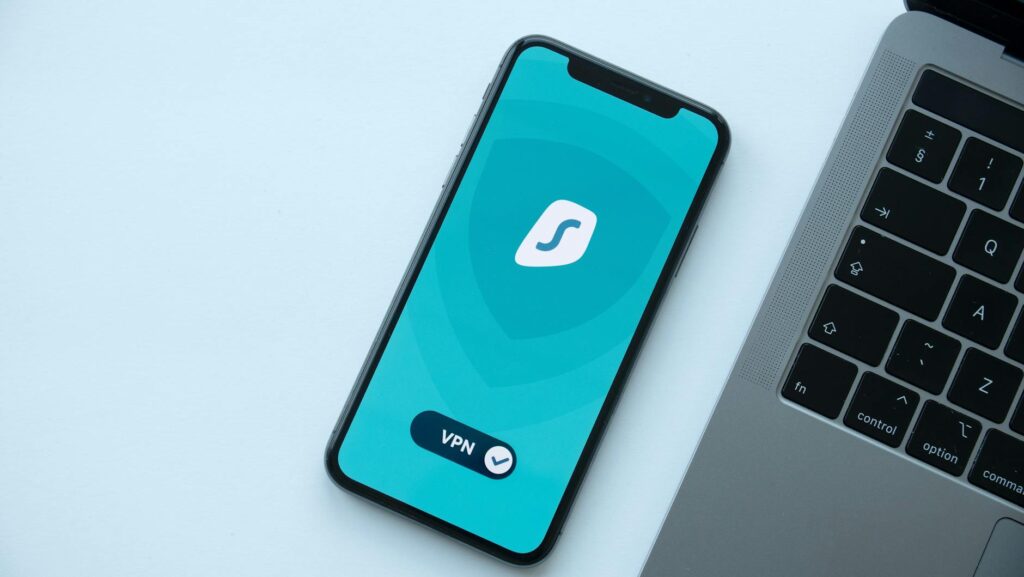
Beyond the basics, several advanced techniques can further bolster your iPhone’s security. One such measure is using a Virtual Private Network (VPN), especially when connecting to public Wi-Fi networks. Public Wi-Fi is notoriously insecure, making it easier for attackers to intercept your data. A VPN encrypts your internet traffic, making it unreadable to anyone trying to snoop.
Consider using a password manager. These tools generate and store strong, unique passwords for all your online accounts, including those linked to your Apple ID and apps. Apps like 1Password or LastPass are highly recommended. They also help you autofill login details securely, reducing the need to remember multiple complex passwords. Another advanced tip is to regularly review your iPhone’s location history and turn off location services for apps that don’t truly need it. You can find this under Settings > Privacy & Security > Location Services.
How It Works: Securing Your Device Step-by-Step
- Set a Strong Passcode: Go to Settings > Face ID & Passcode (or Touch ID & Passcode) and choose ‘Change Passcode’. Opt for a 6-digit code or alphanumeric password.
- Enable Two-Factor Authentication (2FA) for Apple ID: Navigate to Settings > [Your Name] > Password & Security and tap ‘Turn On Two-Factor Authentication’ if it’s not already enabled.
- Review App Permissions: Periodically go to Settings and scroll down to each app. Review and adjust permissions for Location, Photos, Contacts, Microphone, Camera, etc., setting them to ‘Never’ or ‘While Using the App’ where possible.
- Enable Find My iPhone: Ensure ‘Find My’ is turned on in Settings > [Your Name] > Find My. This helps locate, lock, or erase your device if lost or stolen.
- Keep iOS Updated: Go to Settings > General > Software Update and enable Automatic Updates. Install available updates promptly.
- Use a VPN on Public Wi-Fi: Subscribe to a reputable VPN service and activate it before connecting to public Wi-Fi hotspots.
- Use a Password Manager: Download a trusted password manager app and start generating and saving unique, strong passwords for all your accounts.
Common iPhone Security Mistakes to Avoid
One of the most common mistakes is using the same simple passcode across multiple devices or for different services. Attackers can easily try the same compromised passcode on other accounts. Another frequent error is ignoring software update notifications, leaving devices vulnerable to known exploits. Many users also grant excessive app permissions by default, not realizing the privacy implications.
Failing to enable two-factor authentication for your Apple ID is another critical oversight. It’s like leaving your front door unlocked when you have valuable possessions inside. Finally, blindly trusting incoming messages or clicking on links without verification is a recipe for disaster, leading to phishing attacks or malware infections. It’s crucial to be discerning and verify communications through official channels.
Expert Tips for Advanced iPhone Security
For those seeking maximum iPhone security in 2026, consider disabling automatic downloads and installations for apps. IPhone Security: Keeping Your Apple Device Safe from Threats gives you a moment to review each app before it’s placed on your device. Additionally, review your Apple ID’s trusted devices list and remove any you no longer recognize or use. According to security analysts at the Electronic Frontier Foundation (EFF) (2025), regularly reviewing these lists is a proactive step against account takeover.
Turn off Bluetooth and Wi-Fi when not in use. While convenient, these can be potential entry points for attackers if left on and unsecured. For highly sensitive users, explore features like Lockdown Mode, available on recent iOS versions, which offers extreme protection by limiting device functionality to prevent targeted attacks. Also, be mindful of physical security – don’t leave your iPhone unattended in public places.
Frequently Asked Questions
Can iPhones get viruses or malware?
While iPhones are generally more resistant to traditional viruses than PCs due to Apple’s security architecture, they are not entirely immune. Malware can be installed through malicious apps found outside the App Store (sideloading), compromised websites, or sophisticated phishing attacks that exploit zero-day vulnerabilities.
How often should I update my iPhone’s software?
It’s best to update your iPhone as soon as a new iOS version or security patch is released. Apple typically pushes out updates to fix critical vulnerabilities, and delaying these updates leaves your device exposed to known threats.
What is the most important iPhone security setting?
Enabling a strong passcode or biometric (Face ID/Touch ID) and turning on two-factor authentication for your Apple ID are arguably the two most important security settings. They provide fundamental layers of protection against unauthorized access to your device and account.
How can I tell if my iPhone is being spied on?
Signs of spying can include rapid battery drain, unusual data usage, unexpected reboots, strange noises during calls, or apps appearing that you didn’t install. If you suspect your iPhone is compromised, run a security scan, review app permissions, and consider a factory reset after backing up essential data.
Is it safe to use public Wi-Fi on my iPhone?
Using public Wi-Fi can be risky as attackers can intercept data transmitted over unsecured networks. It’s recommended to use a reputable VPN service whenever you connect to public Wi-Fi to encrypt your traffic and protect your sensitive information.
Should I use a VPN on my iPhone?
Using a VPN is highly recommended, especially if you frequently connect to public Wi-Fi or want to enhance your online privacy. A VPN encrypts your internet traffic, making it much harder for third parties to track your online activities or intercept your data.
Conclusion
Maintaining strong iPhone security in 2026 requires a proactive and informed approach. By implementing strong passcodes, keeping your iOS updated, managing app permissions diligently, securing your Apple ID with 2FA, and staying vigilant against phishing, you can significantly protect your device and personal data from evolving threats. Regular review of these practices ensures your Apple device remains a secure tool for communication, work, and entertainment.
Last reviewed: May 2026. Information current as of publication; pricing and product details may change.
Source: Wired
Related Articles
- Smart Home Security Systems: Your Ultimate Guide for 2026
- Sflix: How to Use a Video Downloader for Smooth Streaming
- Apple Silicon's Journey: From A4 to the A18 Bionic in 2026
Editorial Note: This article was researched and written by the Bloxtra editorial team. We fact-check our content and update it regularly. For questions or corrections, contact us.