Why Your Mobile Device Won’t Connect Via USB (And How to Fix It)
This guide covers everything about Mobile USB Connection Issues? Troubleshooting Guide 2026. It’s one of those frustrating moments: you plug your phone or tablet into your computer, expecting a smooth data transfer or a quick charge, only to be met with… nothing. Your device isn’t recognized, it’s not charging properly, or a cryptic error message pops up. As of May 2026, these troubleshooting USB connection issues for mobile devices remain a surprisingly common hurdle for many users, impacting everything from backing up photos to updating firmware.
Most readers searching this topic want to know why their phone won’t connect via USB, and what simple steps they can take to fix it without needing to call tech support. This guide dives into the most frequent culprits and offers clear, actionable solutions.
Key Takeaways
- Most USB connection problems stem from simple issues like cables, ports, or software settings.
- Always start with the most basic checks: try a different cable and port.
- Ensure your device is set to the correct USB mode (e.g., File Transfer/MTP) after connecting.
- Outdated drivers or conflicts can prevent your PC from recognizing your mobile device.
- USB debugging, while useful for developers, can sometimes interfere with standard connections if not managed.
Check the Basics: Cable and Port Health
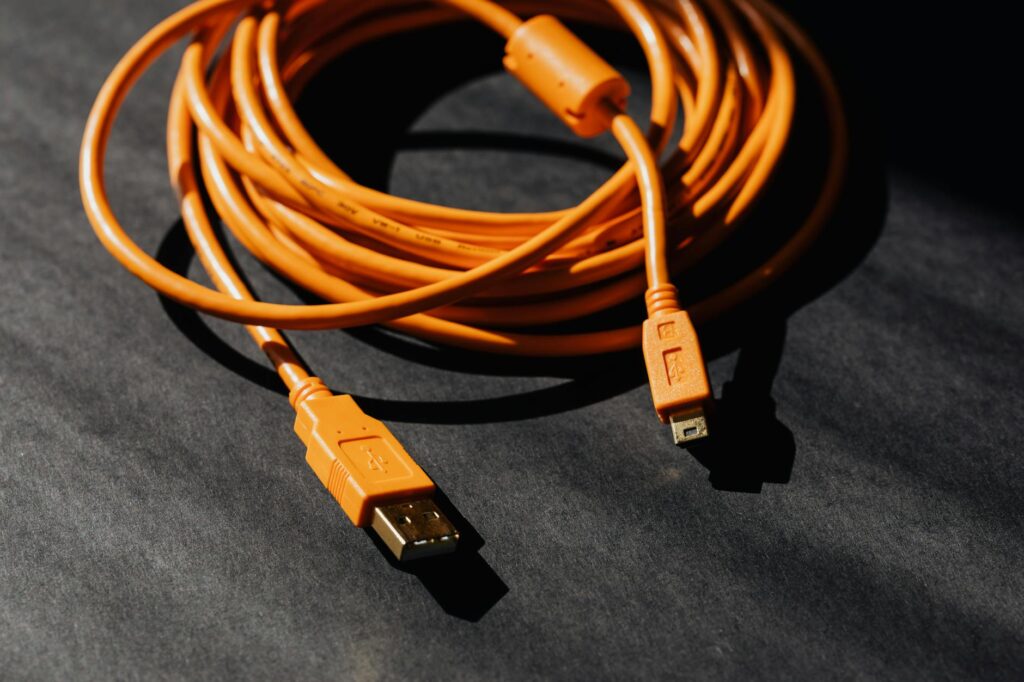
Before diving into complex software fixes, the most logical starting point for troubleshooting USB connection issues for mobile devices is to examine the physical components involved: the USB cable and the ports on both your device and your computer. A faulty cable is one of the most frequent offenders, often going unnoticed.
Sarah, a graphic designer, couldn’t transfer her latest project files from her phone. She tried multiple times, but her Windows laptop only showed the charging icon. After an hour of frustration, she swapped her usual charging cable for a brand-new one she’d bought for her tablet, and her phone immediately appeared in File Explorer.
Similarly, check the USB ports. Dust, lint, or debris can accumulate inside the port on your phone or computer, creating a poor connection. A gentle puff of compressed air or a careful clean with a non-metallic toothpick can often resolve this.
[IMAGE alt=”Close-up of debris inside a mobile phone’s USB-C port” caption=”Dust and debris can obstruct a mobile device’s USB port, preventing proper connection.”]
Understanding USB Connection Modes
When you connect your mobile device to a computer, it doesn’t automatically know what you want it to do. Most Android devices, for instance, default to ‘Charging Only’ mode for security and battery preservation. To transfer files or use other USB functions, you need to manually select the correct mode.
After connecting your Android phone to your PC, swipe down from the top of your phone’s screen to open the notification shade. You’ll likely see a notification like ‘Charging this device via USB.’ Tap it, and you’ll be presented with options such as ‘File Transfer/MTP,’ ‘Photo Transfer/PTP,’ or ‘No data transfer.’ Selecting ‘File Transfer/MTP’ is usually what you need for general file access.
For iOS devices, the connection process is typically more straightforward, often prompting you to ‘Trust This Computer’ on your iPhone or iPad. If you tap ‘Don’t Trust,’ your computer won’t be able to access your device’s data, so ensure you’ve granted permission.
Troubleshooting USB Driver Issues
Computer operating systems rely on specific software, known as drivers, to communicate with hardware devices. Your mobile phone or tablet is no exception. If your PC isn’t recognizing your mobile device, or is showing an ‘Unknown Device’ in Device Manager, the issue might be with your USB drivers.
A common scenario involves Windows 11 not recognizing a newly purchased smartphone. In this case, you’ll need to ensure the correct USB drivers are installed. For Android devices, manufacturers like Samsung, Google, and OnePlus often provide their own specific USB drivers, which can usually be downloaded from their support websites. For iPhones, the drivers are typically bundled with iTunes or Apple’s standalone Apple Mobile Device Support software.
According to Microsoft documentation (as of 2026), outdated or corrupted drivers can lead to a wide range of hardware communication errors. To check for driver issues on Windows:
- Right-click the Start button and select ‘Device Manager.’
- Look for your mobile device under ‘Portable Devices,’ ‘Other Devices,’ or ‘Universal Serial Bus controllers.’ It might have a yellow exclamation mark next to it, indicating a problem.
- Right-click the device and select ‘Update driver.’ You can choose to ‘Search automatically for drivers’ or ‘Browse my computer for drivers’ if you’ve downloaded them manually.
[IMAGE alt=”Windows Device Manager showing a mobile device with a yellow exclamation mark indicating a driver issue” caption=”Device Manager highlights driver problems with a yellow exclamation mark.”]
When USB Debugging Causes Headaches
USB debugging is a powerful feature primarily used by developers to transfer apps between a computer and a device, run shell commands, and debug applications directly. However, when enabled improperly or left on unintentionally, it can sometimes interfere with standard USB connections, leading to troubleshooting USB connection issues for mobile devices.
A user might find their phone suddenly stops being recognized for simple file transfers after they enabled USB debugging to test a new app. The phone might still charge, but no data connection is established. Disabling USB debugging, usually found within the ‘Developer Options’ menu on Android (which itself is often hidden until you tap the build number in ‘About Phone’ seven times), can resolve this.
Drawback: While essential for developers, enabling USB debugging can expose your device to security risks if connected to an untrusted computer, as it grants deeper access.
The Role of the MTP Protocol
Most modern mobile devices use the Media Transfer Protocol (MTP) to allow computers to access their internal storage and SD cards. MTP is a more advanced protocol than the older USB Mass Storage (UMS) mode, allowing the device to manage access to its storage while still being accessible to the computer.
If you’re trying to copy photos or videos from your Android phone to your PC and File Explorer shows the phone but not its storage contents, an MTP-related issue might be at play. Sometimes, the MTP driver on the computer can become corrupted.
On Windows, you can often fix this by going to Device Manager, finding your device, right-clicking, and selecting ‘Uninstall device.’ Then, disconnect and reconnect your phone. Windows should attempt to reinstall the MTP driver automatically. If that fails, manually downloading and installing the MTP driver package from your device manufacturer’s website is the next step.
Software Conflicts and Updates
Sometimes, the culprit behind your mobile USB connection issues isn’t hardware-related but lies within your computer’s software. Antivirus programs, other mobile management software, or even operating system glitches can sometimes block or interfere with USB connections.
An aggressive antivirus suite might flag the connection process as a potential security threat and block it. Temporarily disabling your antivirus (and remembering to re-enable it afterward!) can help diagnose if this is the problem. Be cautious when doing this, and only connect to trusted computers.
Keeping your operating system and device software up-to-date is also crucial. As of May 2026, the latest versions of Windows, macOS, and Android/iOS often include patches and improvements for USB connectivity. Ensure both your phone/tablet and your computer have the latest available system updates installed.
Drawback: Sometimes, a recent OS update can introduce new bugs that affect USB connectivity. If the problem started immediately after an update, consider checking online forums for similar reports or rolling back the update if possible (though this is an advanced step).
When to Consider a New Cable or Port
Despite all the software checks and settings adjustments, sometimes the simplest answer is the correct one: your hardware is failing. If you’ve tried multiple known-good cables, different USB ports on your computer, and confirmed your device’s USB mode is set correctly, the problem might be with the USB port on your mobile device itself.
If your phone only charges intermittently or not at all when using any cable, and you’ve ruled out software issues, the physical port might be damaged or worn out. This is particularly common with older devices or those that have been dropped.
Cost Consideration: As of early 2026, a basic USB-C cable can cost anywhere from $10 to $30, while a replacement port repair on a mid-range Android phone might range from $50 to $150, depending on the model and service provider. For iPhones, port repairs can often exceed $100.
Troubleshooting USB Connection Issues for Mobile Devices: A Step-by-Step Summary
When your mobile device refuses to cooperate with your computer via USB, follow this methodical approach:
- Check the Cable: Try a different, known-good USB cable. Ensure it’s rated for data transfer, not just charging.
- Check the Ports: Clean the USB ports on your phone and computer. Try different USB ports on your computer (e.g., USB 2.0 vs. USB 3.0).
- Verify USB Mode: On your phone, swipe down and select ‘File Transfer/MTP’ or ‘Photo Transfer/PTP’ from the USB notification.
- Restart Devices: Reboot both your mobile device and your computer. This simple step resolves many temporary glitches.
- Update Drivers: On your computer, check Device Manager for driver issues and update or reinstall them.
- Disable Antivirus (Temporarily): See if your security software is blocking the connection.
- Check for Software Updates: Ensure your OS and device firmware are up-to-date.
- Disable USB Debugging: If enabled, turn it off unless you are actively using it for development.
- Test on Another Computer: If possible, try connecting to a different PC to isolate whether the issue is with your primary computer.
Frequently Asked Questions
Why is my phone not recognized by my computer via USB?
This often happens due to a faulty USB cable, an incorrect USB connection mode selected on your phone (like ‘Charging Only’), outdated or missing USB drivers on your computer, or even software conflicts preventing recognition.
How do I fix my phone charging but not connecting to my PC?
This usually points to a data transfer issue. Ensure your phone is set to ‘File Transfer/MTP’ mode via the USB notification. Also, check for driver problems in your computer’s Device Manager and try a different, data-capable USB cable.
What does ‘USB Debugging’ do and why might it cause issues?
USB Debugging allows deeper communication between your computer and Android device for development. While useful, it can sometimes interfere with standard file transfer modes or be flagged by security software, leading to connection problems if left enabled without purpose.
Is it possible my phone’s USB port is broken?
Yes, physical damage or wear and tear can break your phone’s USB port, preventing both charging and data transfer. If multiple cables and computers don’t work, and you’ve exhausted software fixes, port damage is a likely cause.
What is MTP mode on Android?
MTP (Media Transfer Protocol) is the standard mode for transferring files between Android devices and computers. It allows your device to manage its storage while still communicating data, enabling access to internal storage and SD cards for file management.
How often should I update my mobile device’s USB drivers?
Mobile device USB drivers don’t require frequent manual updates. They are usually updated automatically with your computer’s operating system or through specific manufacturer software. Only manually update if you encounter persistent connection issues after exhausting other troubleshooting steps.
Conclusion: Getting Your Mobile Device Connected Again
Dealing with troubleshooting USB connection issues for mobile devices can be a real headache, but most problems are resolvable with a systematic approach. By starting with the simplest checks—cables, ports, and connection modes—and moving towards driver updates and software conflicts, you can usually restore connectivity. Remember to test on another computer if possible to accurately diagnose the fault. With these steps, you should be back to transferring files and charging your devices smoothly in no time.
Last reviewed: May 2026. Information current as of publication; pricing and product details may change.
Related read: The Psychology of Wordle: Why We're Hooked in 2026
Source: Wired
Editorial Note: This article was researched and written by the Bloxtra editorial team. We fact-check our content and update it regularly. For questions or corrections, contact us.