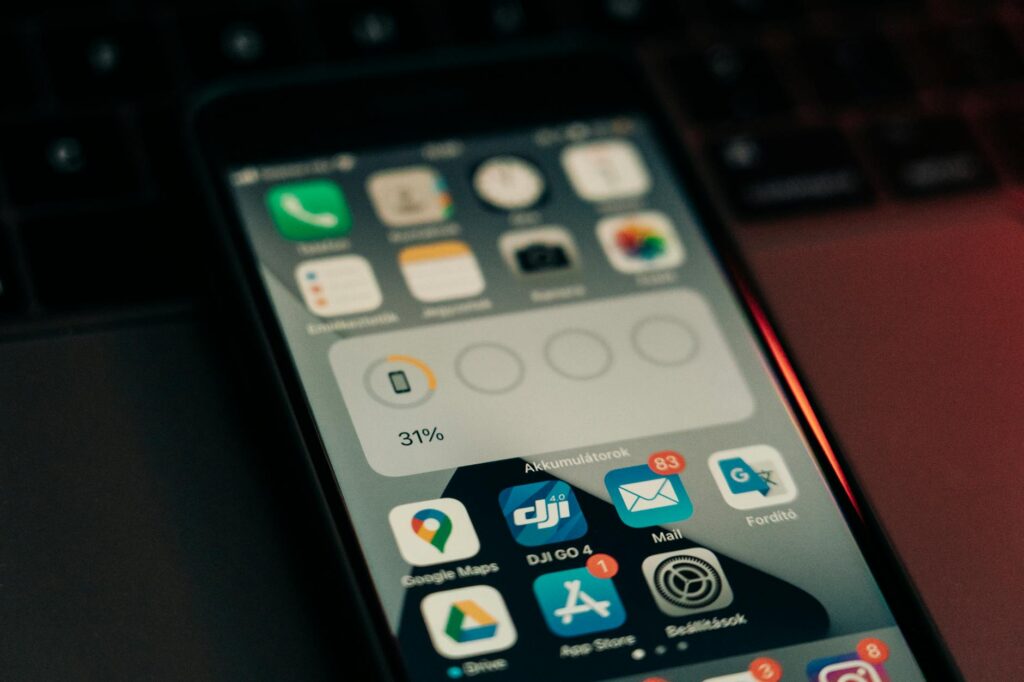
Why is My iPhone Battery Draining So Fast in 2026?
It’s a common frustration: your iPhone, even a newer model in 2026, seems to be draining battery power faster than you expect. This often isn’t due to a faulty battery but rather a combination of software settings, app behavior, and usage patterns. Understanding the culprits is the first step to reclaiming your device’s longevity.
One of the most significant power hogs is the display. Keeping your screen brightness cranked up, especially in low-light environments, forces the display hardware to work overtime. Similarly, features like Auto-Brightness, while convenient, can sometimes be more aggressive than necessary. As of May 2026, Apple’s display technology continues to advance, but the fundamental physics of powering a bright screen remain a constant drain.
Mastering Screen Brightness and Display Settings
Your iPhone or iPad’s screen is a primary source of battery consumption. Simply reducing your screen’s brightness can yield substantial power savings. Navigate to Settings > Display & Brightness and manually adjust the slider to a comfortable but not overly bright level. Many users overestimate the brightness they need, especially indoors.
And, explore features like Auto-Lock. Setting your device to turn off the display after a shorter period, such as 30 seconds or 1 minute, prevents the screen from remaining on unnecessarily when you’ve stepped away. True Tone, which adjusts the display’s color temperature to ambient light, is generally power-efficient, but if you notice unusual drain, toggling it off temporarily can be a diagnostic step. For those with ProMotion displays on newer iPads, limiting frame rates can also contribute to battery longevity, though this is often managed automatically by iOS.
The Impact of Background App Refresh
Background App Refresh is a powerful iOS feature that allows apps to update their content even when you’re not actively using them. While convenient for getting the latest news or social media updates, it’s also a major battery drain. Many apps don’t require constant refreshing.
To optimize this, go to Settings > General > Background App Refresh. Here, you can disable it entirely, or more effectively, selectively turn it off for apps that don’t need real-time updates. For instance, your calculator app or a simple note-taking app likely doesn’t need to refresh in the background. Consider enabling it only for essential communication or news apps. According to research from various tech outlets as of early 2026, disabling Background App Refresh for even a handful of non-essential apps can save between 10-20% of daily battery usage.
Location Services: A Necessary Evil for Battery Life
Location Services are incredibly useful, powering everything from Maps and Find My to geotagging photos and providing location-based app suggestions. However, constant GPS polling and network-based location tracking consume significant power.
The key is to be granular. Go to Settings > Privacy & Security > Location Services. For each app, choose whether to allow location access: ‘Never’, ‘Ask Next Time’, ‘While Using the App’, or ‘Always’. Most apps only need ‘While Using the App’. Avoid ‘Always’ unless absolutely necessary for the app’s core function. Additionally, System Services within Location Services offer further control; disabling ‘Location-Based Alerts’ or ‘Popular Near Me’ can help reduce background power draw without impacting core functionalities you rely on.
Push Notifications: Balancing Connectivity and Power
Every time an app sends you a push notification, your iPhone or iPad wakes up its cellular or Wi-Fi radios, and illuminates the screen or vibrates. While essential for staying informed, an excessive number of notifications can chip away at your battery throughout the day.
Take a proactive approach by reviewing your notification settings. Go to Settings > Notifications and disable alerts for apps that don’t require immediate attention. For apps where you want to stay updated but not be constantly interrupted, consider disabling ‘Badges’ or ‘Sounds’ and opting for just ‘Alerts’ that appear silently on your lock screen or in the Notification Center. This small change, multiplied across numerous apps, can lead to noticeable battery savings.
using Low Power Mode and Battery Health
Low Power Mode is iOS’s built-in battery-saving superhero. When enabled, it automatically reduces background activity, mail fetch frequency, screen auto-lock time, and disables certain visual effects. You can find it in Settings > Battery and choose to have it automatically suggested when your battery reaches 20% and 10%.
Beyond Low Power Mode, understanding your device’s ‘Battery Health’ is critical. Under Settings > Battery > Battery Health & Charging, you’ll see your battery’s maximum capacity and if it’s performing optimally. As batteries age, their capacity diminishes. While this is normal, a significantly degraded battery might warrant replacement. Apple advises that a normal battery is designed to retain up to 80% of its original capacity at 500 complete charge cycles. For models in 2026, the technology continues to improve, but capacity will still degrade over time.
Common Mistakes That Drain Your iPhone and iPad Battery
Many users inadvertently drain their batteries by falling into common traps. One such mistake is leaving Wi-Fi and Bluetooth on constantly, even when not actively using them or when out of range of known networks. Your device actively searches for networks and devices, which uses power.
Another common pitfall is the misconception about charging. Constantly topping up your battery to 100% from a high percentage, or letting it consistently drop to 0%, isn’t ideal for long-term lithium-ion battery health. As of May 2026, Apple’s Optimized Battery Charging (found under Settings > Battery > Battery Health & Charging) helps reduce battery aging by learning your daily charging routine and waiting to charge past 80% until you need it. Also, avoid extreme temperatures; both excessive heat and cold can negatively impact battery performance and longevity.
Optimizing App Usage for Better Battery Life
Your apps are often the primary users of your battery. Simply being aware of which apps consume the most power can guide your usage habits.
Go to Settings > Battery to see a detailed breakdown of battery usage by app. If you notice an app you rarely use is consistently at the top of the list, investigate its settings. Does it have excessive background activity or location tracking enabled? Consider deleting apps that are power-hungry and not essential. For power-intensive tasks like gaming or video editing, it’s wise to ensure your device is well-charged and perhaps connected to a power source if possible.
The Role of Software Updates and iCloud
Keeping your iPhone and iPad updated to the latest version of iOS or iPadOS is generally beneficial for battery life. Updates often include optimizations and bug fixes that can improve power efficiency. However, it’s also wise to be mindful of major OS updates immediately after release, as initial versions can sometimes have unexpected battery drain issues that are patched in subsequent minor updates.
iCloud services, while useful for syncing data, can also contribute to battery drain if not managed properly. For example, ‘iCloud Photos’ syncing large libraries, especially when on a slower network, can consume considerable power. Under Settings > [Your Name] > iCloud, you can manage which services sync and opt to ‘Sync over Wi-Fi Only’ for large data transfers. Similarly, ensuring your ‘Mail’ settings are set to fetch new data periodically rather than ‘Push’ can save battery, especially if you have multiple email accounts.
Beyond Settings: Physical Care and Charging Habits
The physical care of your device plays a role. Keeping your iPhone or iPad clean, especially charging ports, ensures a consistent connection. Using MFi-certified (Made for iPhone/iPad) charging accessories is also important for safe and efficient power delivery. Uncertified chargers might not regulate power correctly, potentially harming the battery over time.
Consider the environment your device operates in. Extreme temperatures are battery killers. If you live in a very hot climate, avoid leaving your device in direct sunlight or a hot car. Conversely, in very cold conditions, prolonged exposure can temporarily reduce battery performance. For prolonged storage of an iPad or iPhone, Apple recommends charging it to around 50% and storing it in a cool, dry place. According to Apple’s official support documentation, batteries are consumables and degrade over time, but proper care can extend their useful life.
What About Those New 2026 Battery Innovations?
As of May 2026, battery technology is constantly evolving. While Apple hasn’t introduced revolutionary battery tech like solid-state batteries into its consumer devices just yet, incremental improvements are always being made. Newer iPhones and iPads in 2026 often feature more power-efficient processors and display technologies that contribute to better overall battery life compared to older models, even with similar battery capacities.
And, software optimizations are key. Apple’s iOS and iPadOS are designed to intelligently manage power consumption, learning user habits and adapting to reduce drain. Features like ‘Optimized Battery Charging’ and ‘Adaptive Battery’ (though the latter is more commonly associated with Android, Apple has similar intelligent power management systems) are designed to extend battery longevity and daily usage without requiring constant manual intervention. Keep an eye on Apple’s WWDC announcements for any new battery-related software features or hardware advancements.
Frequently Asked Questions
How can I quickly save battery on my iPhone or iPad?
To quickly save battery, enable Low Power Mode, significantly reduce screen brightness, turn off Background App Refresh for non-essential apps, and disable Location Services for apps that don’t need them. These immediate adjustments can make a noticeable difference.
What is the best battery saving setting for my iPhone in 2026?
The most impactful battery saving setting is typically Low Power Mode, combined with manually reducing screen brightness and disabling Background App Refresh for most applications. Regularly checking Battery Health also helps identify if a hardware issue needs addressing.
Will turning off Wi-Fi and Bluetooth save battery on my iPad?
Yes, turning off Wi-Fi and Bluetooth when not actively using them, especially when you’re not near known networks or devices, will save battery. Your device uses power searching for signals, so disabling these radios conserves energy.
How often should I charge my iPhone in 2026?
For optimal battery health, it’s best to avoid frequent full discharges to 0% or constant top-ups from high percentages. Use ‘Optimized Battery Charging’ to let your iPhone manage charging past 80% intelligently. Charging whenever it’s convenient is generally fine, as long as extreme states are avoided.
What apps drain iPhone battery the most?
Generally, apps that use a lot of screen time, background activity, or location services are the biggest drains. This includes social media apps, streaming services, GPS navigation apps, and games that run demanding graphics. Check your Battery settings for a detailed breakdown.
Is it bad to use my iPhone while it’s charging?
Using your iPhone while charging is generally safe and won’t harm the battery in 2026, thanks to modern charging management systems. However, devices can generate more heat when charging and under heavy use simultaneously, which can impact battery health over the very long term.
Conclusion: Smart Habits for a Longer Charge
Maximizing your iPhone and iPad battery life in 2026 isn’t about drastic sacrifices, but rather about making smart, informed choices regarding settings and usage. By understanding how your device consumes power and implementing the tips outlined here—from managing display brightness and background activity to being mindful of Location Services and charging habits—you can significantly extend your battery’s charge and its overall lifespan. The actionable takeaway is to regularly review your device’s battery settings and usage, making small adjustments that collectively lead to a more enduring power experience.
Last reviewed: May 2026. Information current as of publication; pricing and product details may change.
Editorial Note: This article was researched and written by the Bloxtra editorial team. We fact-check our content and update it regularly. For questions or corrections, contact us.